

You already have an Azure Function. Here’s how to make it available to an AI agent as an MCP tool, with no changes to the function code.
There is no “convert to MCP” button on the Function itself. The path goes through API Management:
HTTP-triggered Function → APIM API → APIM MCP server → Copilot Studio agent
APIM takes a REST API it already manages and turns its operations into MCP tools. So step one is getting your function into APIM as an API. API operations become MCP tools, and APIM exposes them as a remote MCP server.
What you need
An Azure Function App with at least one HTTP-triggered function. Only functions with an HTTP trigger and an Anonymous or Function authorization level can be imported.
An APIM instance in a tier that supports MCP. That’s Developer, Basic, Standard, or Premium, or the v2 tiers Basic v2, Standard v2, and Premium v2.
A Copilot Studio agent or any way to communicate to an MCP server.
Step 1: Start with the Function
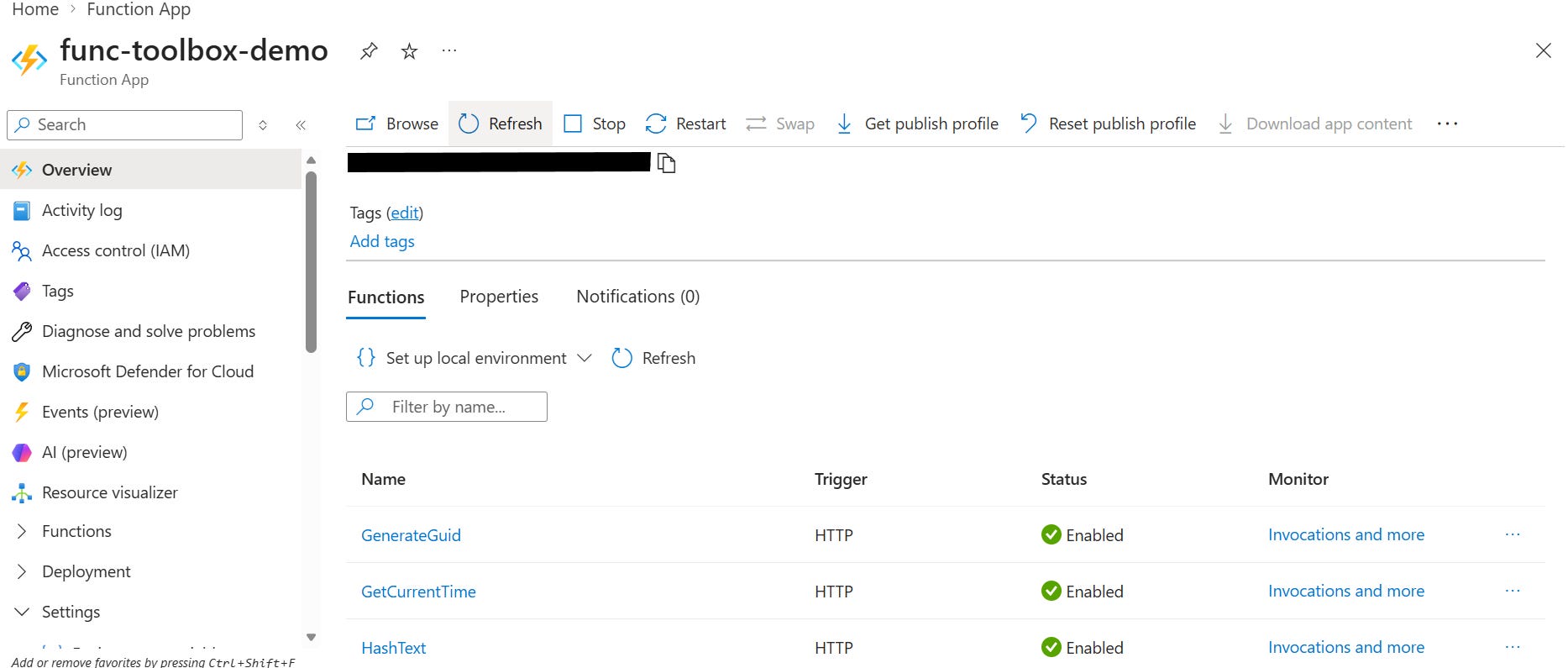
This is the existing capability. We won’t touch it.
Step 2: Import the Function App into APIM
Open your APIM instance and go to APIs → APIs → + Add API.
Under Create from Azure resource, select Function App.
Click Browse, pick your Function App, and select the functions to import.
Switch to Full view and assign a product if you want subscription-based access.
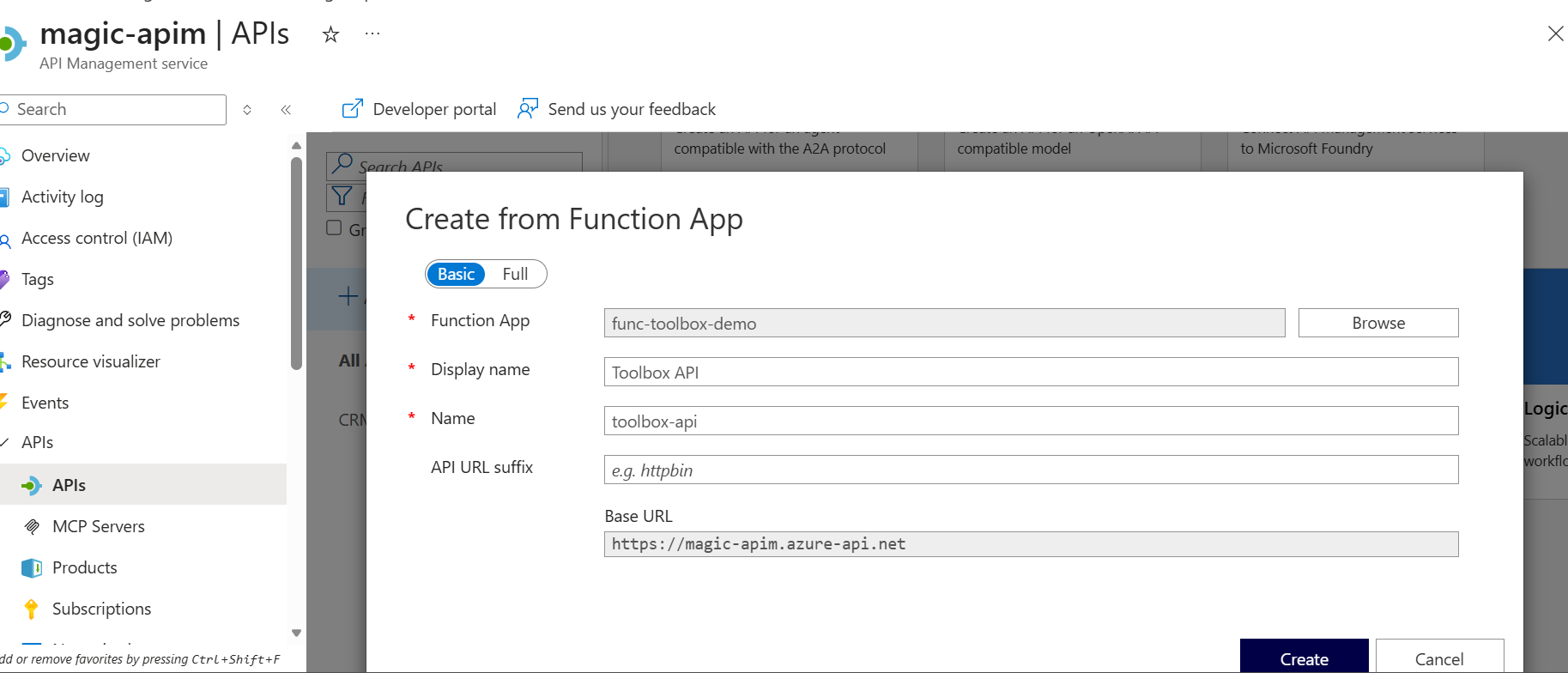
We can edit the description of each tool exposed by the function to help it easily discovered and described by the agent:
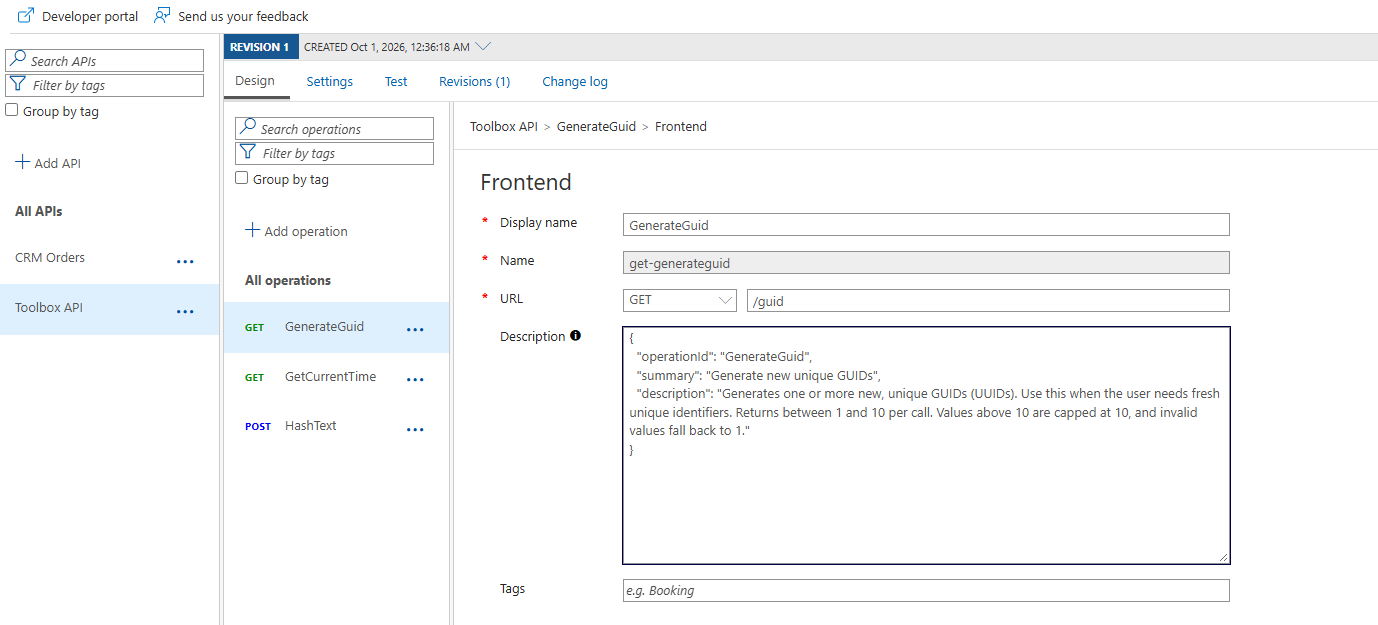
You should make this as descriptive as possible, including at least the following information in JSON format which contains some fields from the Open-API format:
{
“summary”: “”,
“description”: “”,
“parameters”: [{ “name”: “”, “in”: “”, “required”: false, “description”: “” }],
“responses”: { “200”: “”, “400”: “” }
}
Step 3: Create the MCP server
In APIM, go to APIs → MCP Servers → + Create MCP server.
Select Expose an API as an MCP server.
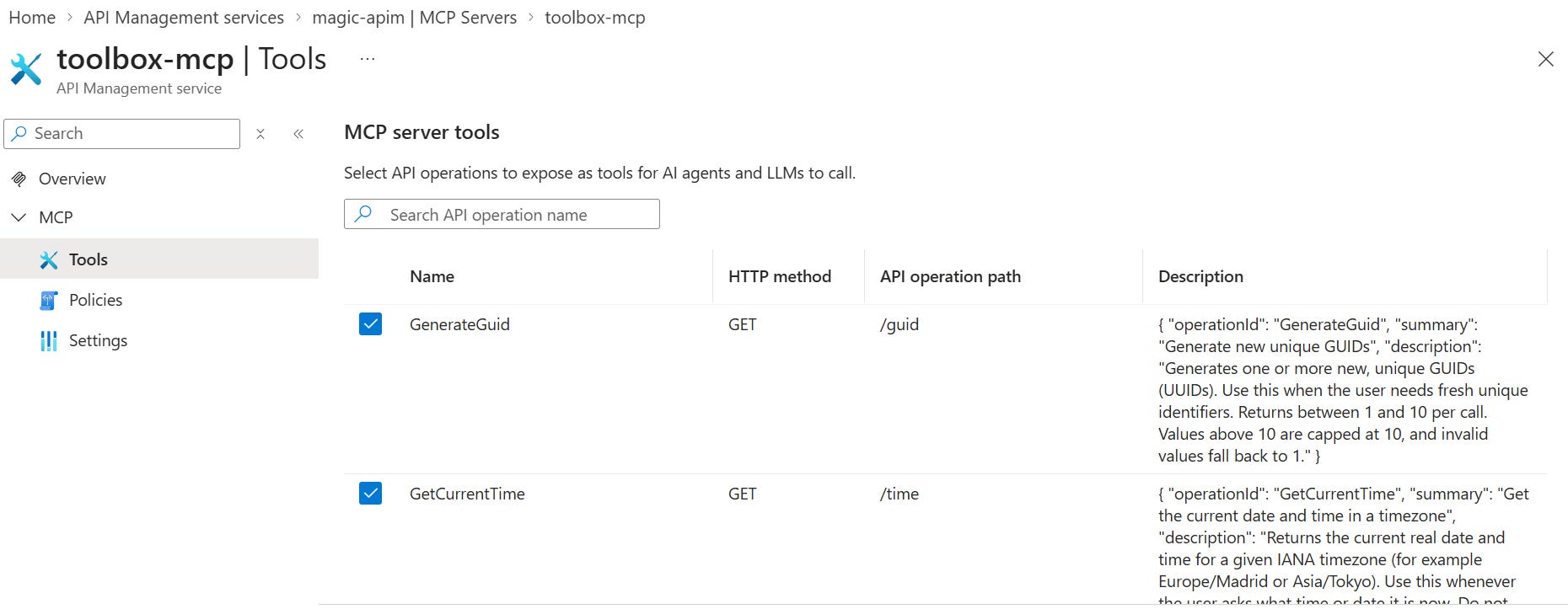
Choose the API you just imported, then pick the operations to expose as tools.
Give it a display name, a name, and a description.
Optionally associate a product, which lets you manage access and subscriptions through it.
Select Create.
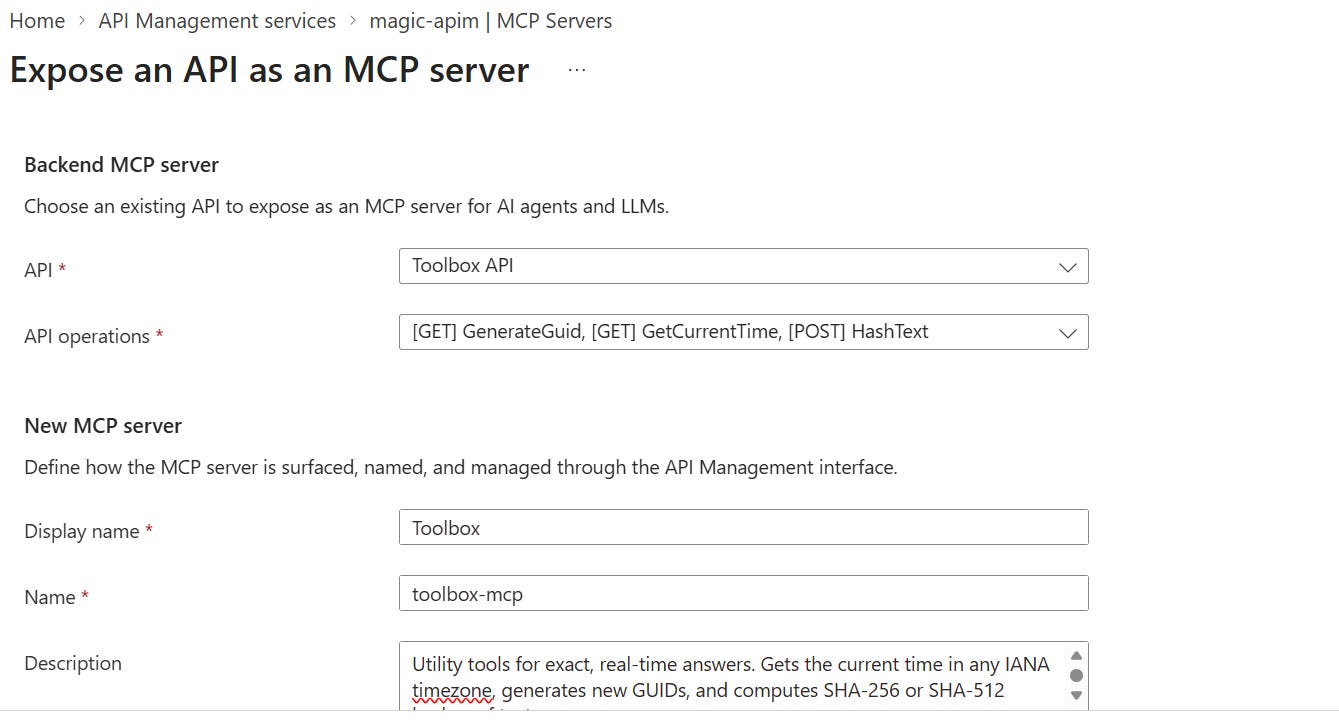
Now, we have our brand new MCP server with tools, ready to be consumed by any agent or LLM:
One thing to watch: the 1,000-character limit
When I first created the MCP server, I had the full description for each tool in the API section, including parameters and responses. Creation failed with an error about a 1,000-character limit, even though by my count none of my descriptions reached that length. I went back to the API section and kept trimming them until the server was created.
The shorter descriptions came at a cost. The agent had a harder time discovering the tools’ full input parameters and responses, which fits the wrong answers I describe below.
Step 5: Connect it to Copilot Studio
Open your agent and go to Tools → Add a tool → New tool → Model Context Protocol.
Fill in Server name, Server description, and Server URL.
Under authentication, choose API key, set type Header, and enter the header name Ocp-Apim-Subscription-Key.
Select Create, then Create a new connection and paste your subscription key.
Select Add to agent.
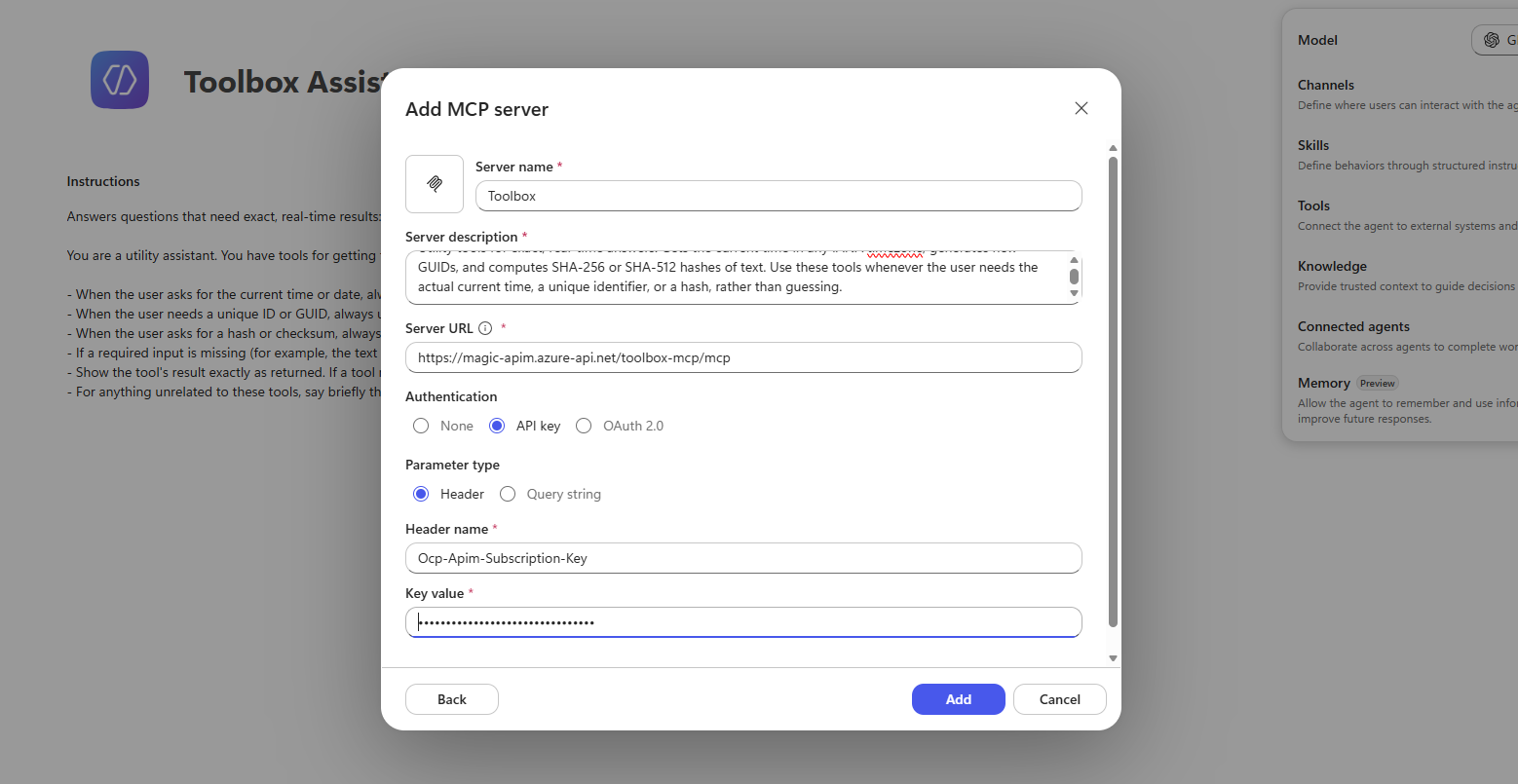
A few things to highlight here:
Copilot Studio supports only the Streamable transport. SSE support ended after August 2025. The APIM /mcp endpoint is the right one.
The server description matters more than it looks. The agent’s orchestrator reads it at runtime to decide whether to call your server. Write it like an instruction, not a label.
I recommend to disable web search in this case, to ensure agent does not try to use web search for some of the functions described in the tool.
Ensure the generative orchestration is turned on as well. Usually the default I believe.
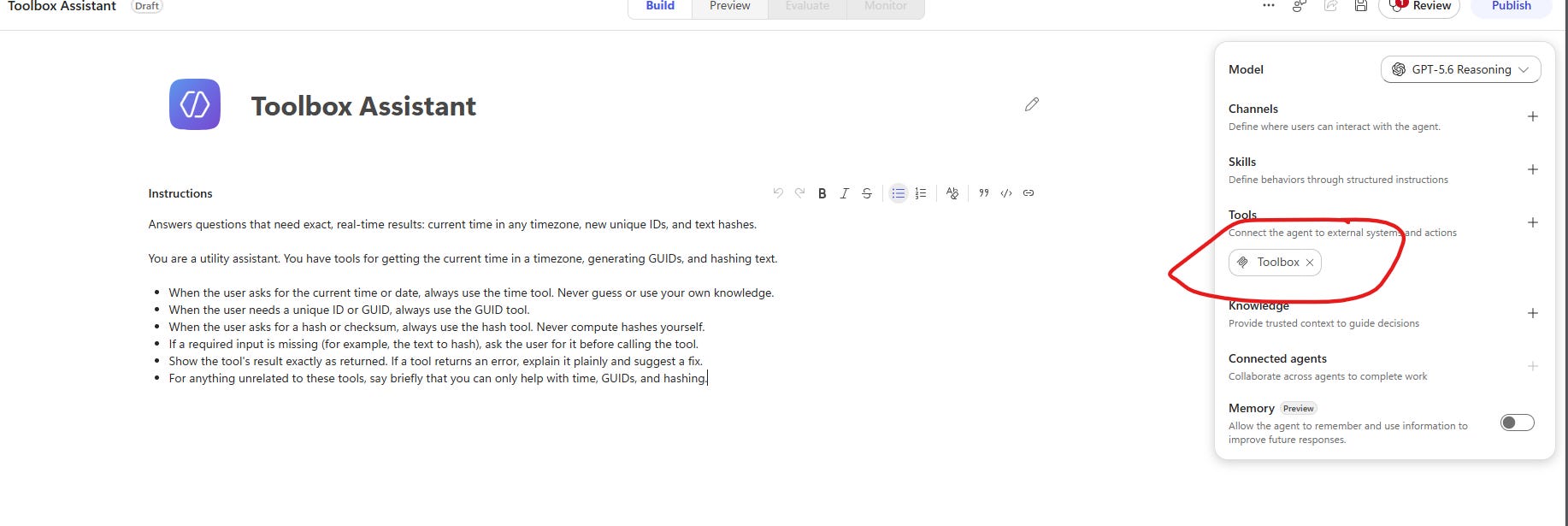
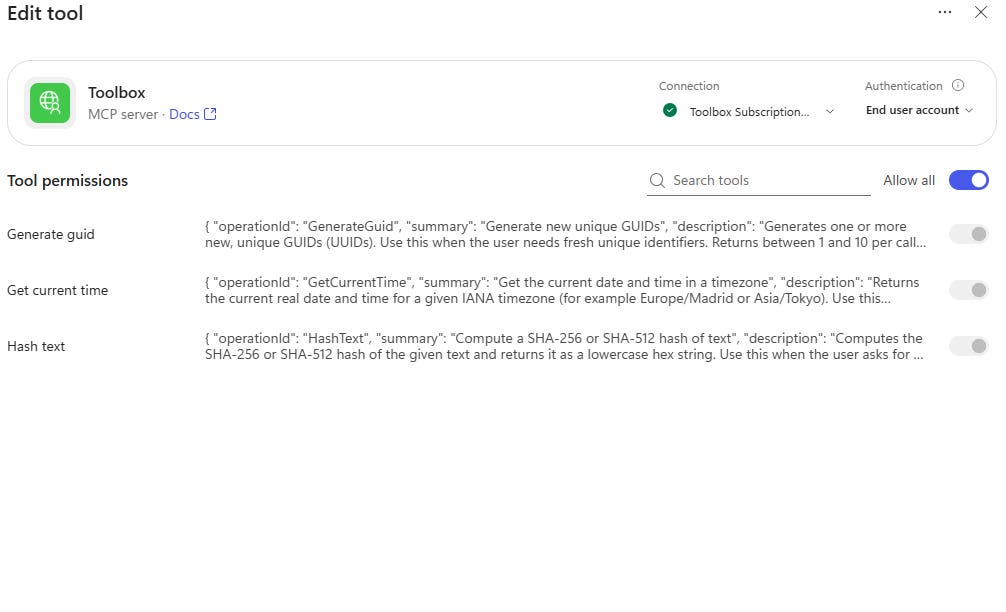
Once that is connected, you see this:
Step 6: See the tool in action
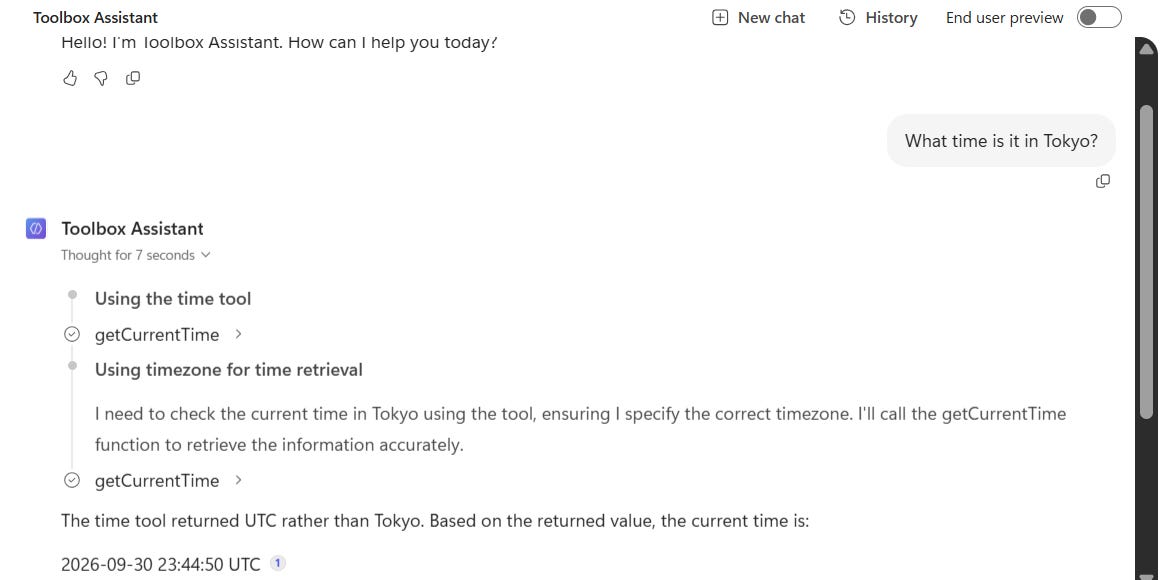
“What time is it in Tokyo?
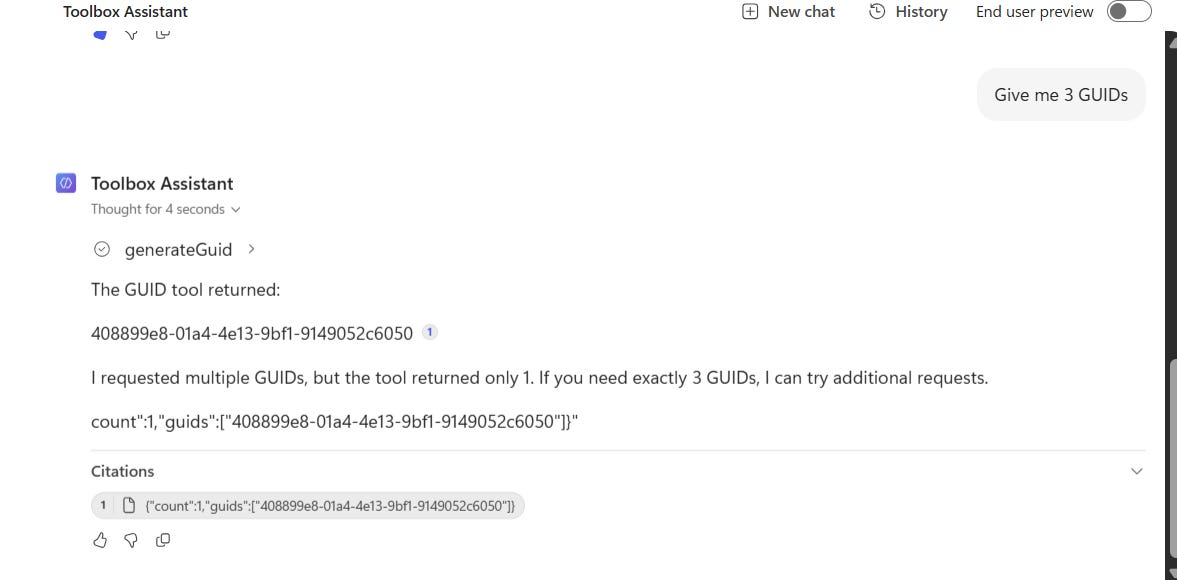
“Give me 3 GUIDs.”
“What’s the SHA-256 of hello world?”
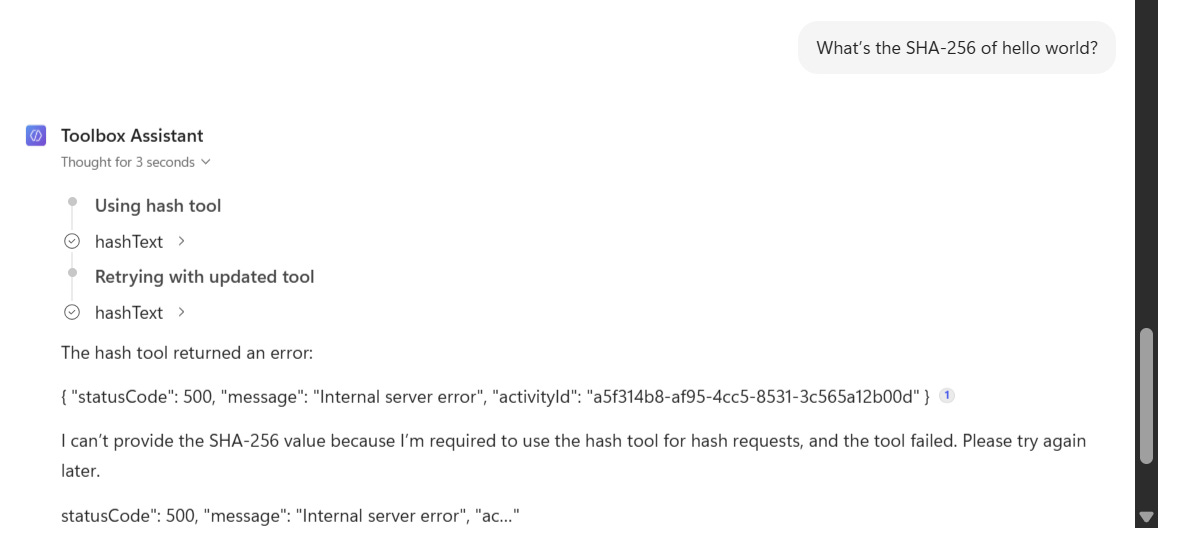
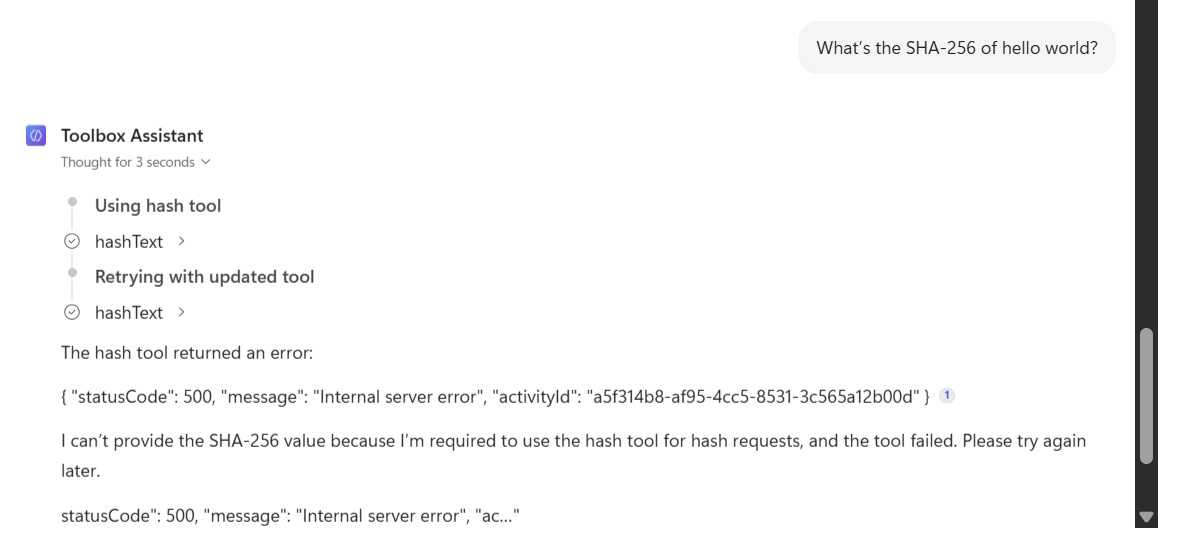
Finally, we were able to see that the agent invoked the appropriate tools correctly and reached our APIs via the MCP server.
The end-to-end path works: the agent discovers the tools and calls them through APIM into the Function App. The answers, though, weren’t all right.
- I asked for three GUIDs and got one.
- I asked for the time in Tokyo and got UTC.
- HashText returned a 500.
My first suspect is the tool’s input schema, because the function falls back to defaults (one GUID, UTC) when it receives no input, which is exactly what the first two failures look like. That’s a hypothesis, not a finding. The 500 is a separate question.
If you follow these steps and see the same thing, check what input schema the server advertises for each tool and what inputs the agent actually sent, before you change any descriptions.
The chain behind that one interaction: your message goes to the agent, which picks the MCP tool, which calls the APIM /mcp endpoint, which calls your Function and returns its response.
That’s all for today and see you in the next one.